Export Custom Reports
Custom reports can be exported to popular formats including Excel, PDF, and CSV. You can also print reports or email them to team members.
Overview
The Export Options component adds format-specific export links to the bottom of your report, allowing users to:
- View reports in searchable format
- Print reports with optimized paging
- Export to Excel for spreadsheet analysis
- Export to PDF for sharing and archiving
- Export to CSV for data import
- Email PDF reports to recipients
Microsoft Office integration with Internet Explorer allows reports exported in Office format to open in a new browser window for editing. Microsoft Excel is required to edit reports from the browser.
Add Export Options to Reports
To enable export options:
- In the Report Builder, click
 from the Insert ribbon
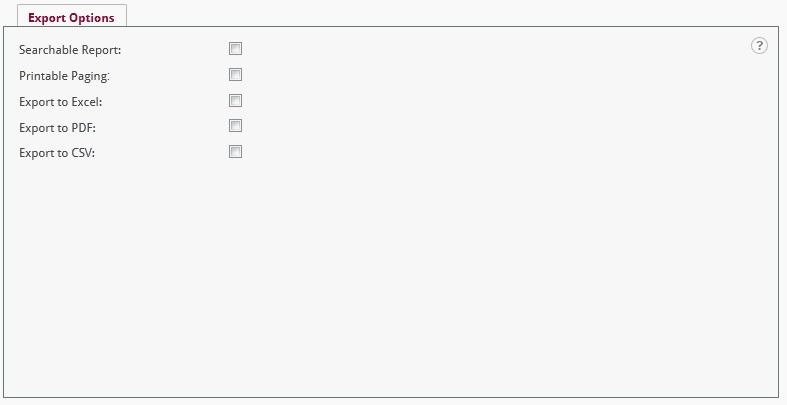
 - The Export Options configuration tab appears
-
Enable the export options you want to offer to users:
- Searchable Report
- Printable Paging
- Export to Excel
- Export to PDF
- Export to CSV
- Send Email
-
Save the report definition
Export option icons appear at the bottom of the report based on availability and user permissions.
Export to Excel
Export to Excel saves the report in Microsoft Excel spreadsheet format for analysis and data manipulation.
To export a report to Excel:
- Open the report you want to export
- Click Export to Excel at the bottom of the report
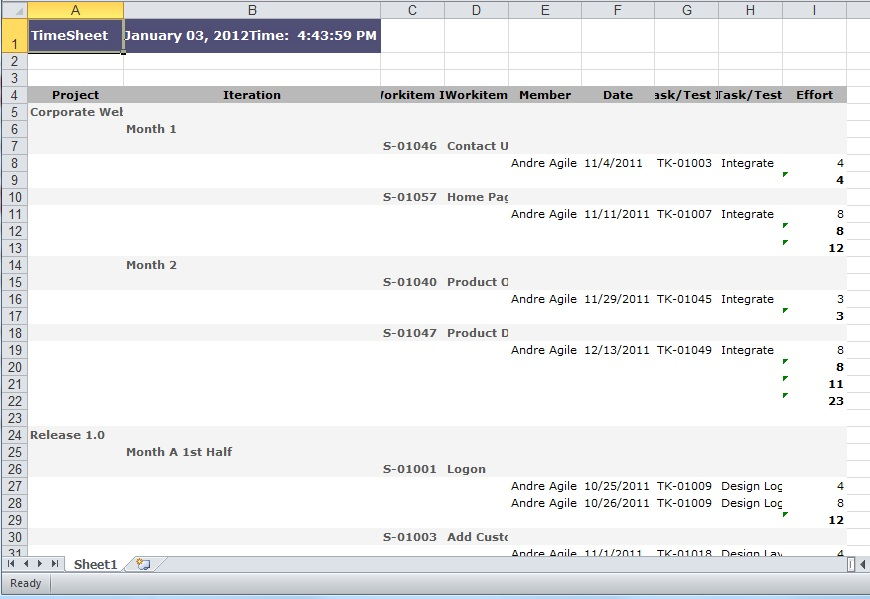
- A new browser window opens displaying the report as an Excel spreadsheet
-
(If Microsoft Excel is installed) Use standard Excel functions:
- Sort rows and columns
- Copy and paste data
- Apply formulas and calculations
- Format cells and ranges
-
Click View > Toolbars to add standard Excel toolbars to the browser window
To save the Excel file:
- From the File menu, choose Save As
- Choose a filename and location
- Click Save
The default file type is Excel format.
Reports containing drill-down groupings are not expanded when exported. Export the report with groupings already expanded if you need that view in Excel.
Export to PDF
Export to PDF creates an Adobe Acrobat document that can be viewed with Adobe Reader and shared easily.
To export a report to PDF:
- Open the report you want to export
- Click Export to PDF at the bottom of the report
- The report opens in the current browser window as a PDF document
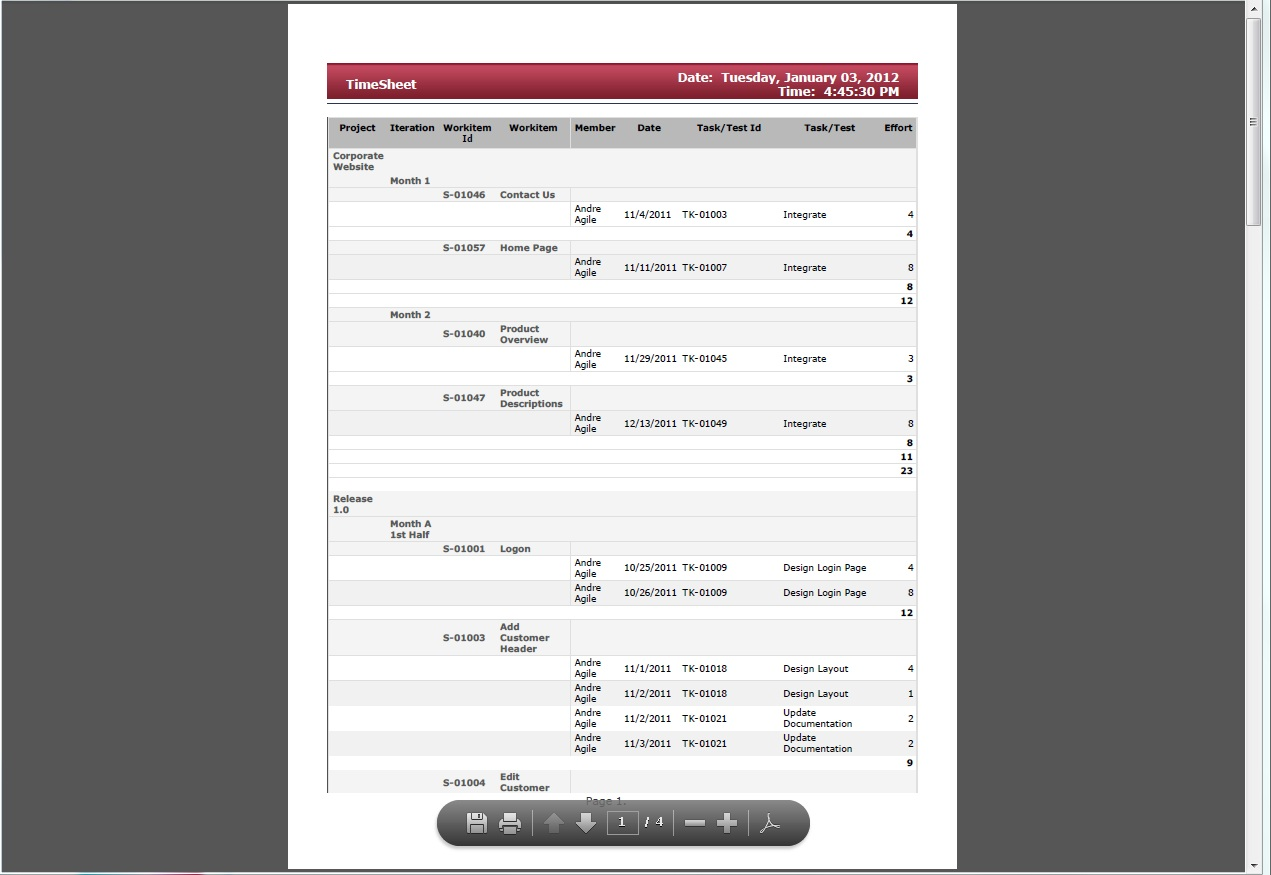
- Use the Adobe toolbar across the top for:
- Saving a copy
- Printing the document
- Searching within the report
- Zooming and navigation
To save the PDF file:
- Click Save a copy from the Adobe toolbar
- Choose a filename and location
- Click Save
The default file type is Adobe PDF Files (*.pdf).
The Adobe Acrobat Reader plug-in must be installed to view PDF reports from the browser. Reports containing drill-down groupings are not expanded when exported.
Export to CSV
Export to CSV creates a comma-separated values file that can be imported into spreadsheets, databases, and text editors.
To export a report to CSV:
- Open the report you want to export
- Click Export to CSV at the bottom of the report
- A new browser window opens displaying the report as comma-delimited text
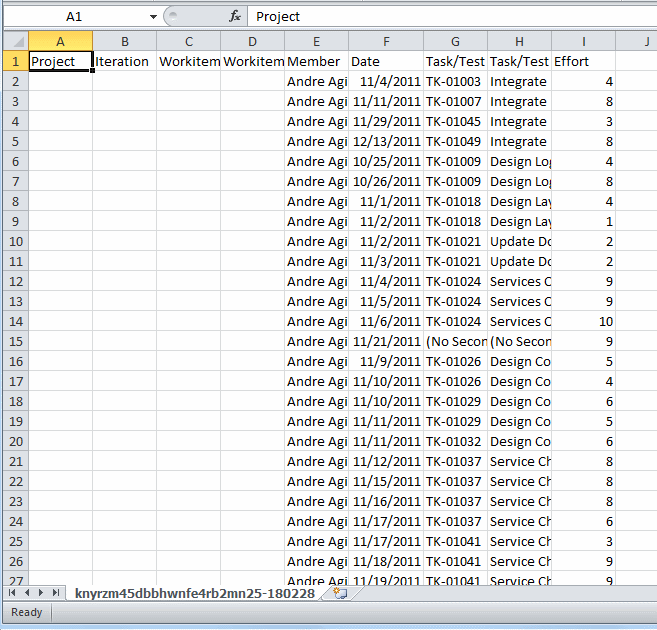
- The report displays in the Microsoft Excel browser plug-in (if installed)
To save the CSV file:
- From the File menu, choose Save As
- Choose a filename and location
- Click Save
The default file type is CSV (comma delimited).
CSV format is viewable by spreadsheets, databases, and text editors. It's ideal for importing report data into other applications or performing custom analysis.
Reports containing drill-down groupings are not expanded when exported.
Print Reports with Optimized Paging
Printable Paging formats reports for printing, avoiding the "cutoff" issue that commonly occurs when printing web pages.
To print a report:
- Open the report you want to print
- Click Printable Paging at the bottom of the report
- A new browser window opens with the report formatted for printing
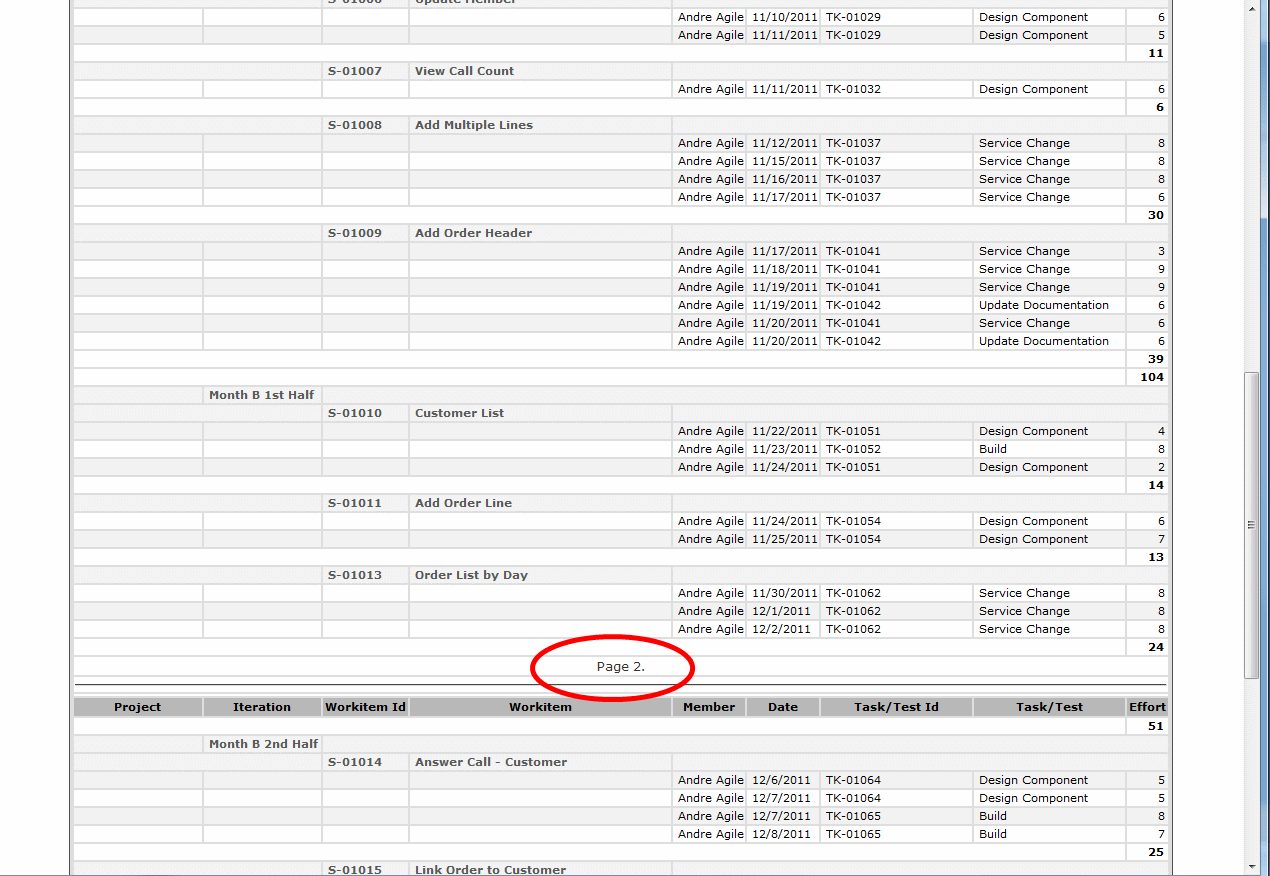
Page numbers appear throughout the webpage showing how the report will be divided across printed pages.
- Click the Print icon from your web browser to print the report
Large reports may take a few seconds to format for printable paging. The progress displays in the lower left corner of the browser window. Reports containing drill-down groupings are not expanded.
View Searchable Reports
Searchable Report presents the entire report in a single-page view, allowing you to search across all content without pagination barriers.
To view a searchable report:
- Open the report you want to search
- Click Searchable Report at the bottom of the report
- The report displays as a single page (no pagination)
- Use CTRL+F (Windows) or CMD+F (Mac) to open the browser's find function
- Search for text across the entire report
This format is ideal when you need to quickly locate specific values or text within a large report.
Email PDF Reports
Send PDF reports to team members and stakeholders directly from Analytics.
This option is only available if SMTP was enabled during installation. If the Send PDF by Email option is not visible, contact your Digital.ai Agility Administrator to upgrade Analytics and enable SMTP.
To email a PDF report:
- Open the report you want to send
- Click Send PDF Report by Email at the bottom of the report
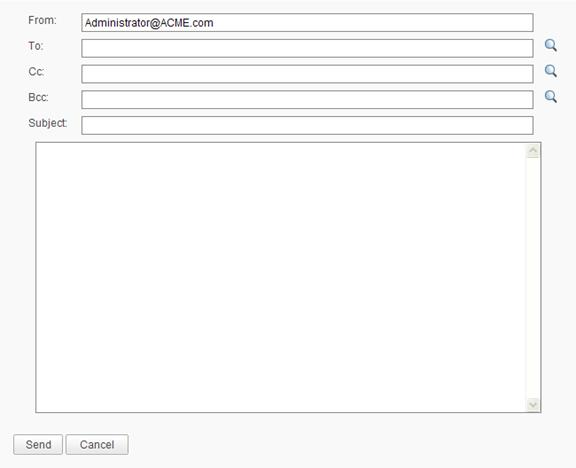
- The email composition form appears
-
Specify recipients:
- Manually enter email addresses in the To field
- Click the
 icon to select from a list of application users
 - (Optional) Add Cc and Bcc recipients
-
Enter a Subject line for the email
-
(Optional) Add a message in the body text
-
Click Send to email the report with the PDF attached
-
Or click Cancel to abort the operation
The From email address defaults to the email address in your user profile. All fields except Cc and Bcc are required.
Export Format Comparison
Choose the right export format for your needs:
| Format | Best For | Editable | Searchable | File Size |
|---|---|---|---|---|
| Excel | Data analysis, calculations, further manipulation | Yes (with Excel) | Yes | Medium |
| Sharing, archiving, official records | Limited (with Acrobat) | Yes | Small | |
| CSV | Data import, integration with other tools | Yes (text editor) | Limited | Smallest |
| Printable | Physical distribution, paper records | No | No | N/A |
| Searchable | Quick text lookup within large reports | No | Yes | N/A |
Best Practices
For Regular Analysis:
- Use Excel export to perform calculations and create custom views
- Save CSV files for importing into external analytics tools
For Distribution:
- Use PDF export for professional-looking reports to share with stakeholders
- Use email function to automatically distribute reports to team members
For Archiving:
- Export to PDF for long-term storage and compliance requirements
- PDF format ensures consistent appearance across platforms
For Printing:
- Use Printable Paging to ensure proper page breaks
- Preview the formatted report before printing to verify layout
For Quick Reference:
- Use Searchable Report format when you need to find specific data quickly
- This eliminates the need to page through large reports
Related Topics
- Build Custom Reports - Create custom reports
- Manage Custom Reports - Organize and share reports
- Dashboards - Add reports to dashboards
- Custom Reporting and Data Mart - Overview of reporting capabilities