Using the Required Fields Option
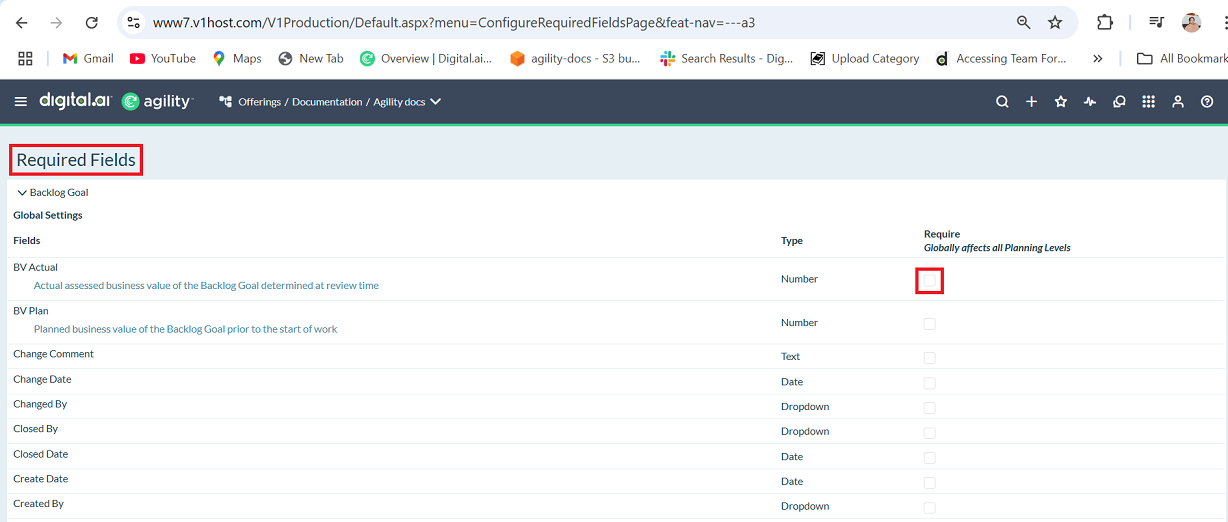
Agility has moved the Required Fields option to the new Required Fields page. Earlier, the Required Fields option was accessible within the Project Workspace's Asset page and Global Asset Settings page. The Required Fields option allows users to designate specific fields as mandatory for asset records, this has now been centralized and streamlined for improved usability.
How to Access and Make Fields Required or Mandatory
- Click the hamburger menu
 > Admin > Required Fields .
 - Expand the asset item that contains the field(s) you want to change.
- Select the Require check box next to each field you want to make required or mandatory.
-
Required field settings apply globally and cannot be configured differently across projects and project workspaces.
-
Some fields are not listed or are grayed out because they are required by the system and cannot be removed.
-
Only members with an Admin Privileges role of "System Admin" can make fields mandatory
-
Making a field mandatory may impact other areas of the application, such as:
- Integrations
- Generating an asset from another asset (e.g. generating a story or backlog item a from request)
- Changing stories or backlog items to defects and vice versa
- Excel imports
- Globally affects all projects
- Member profiles upon creation
- Existing Member profiles
There are other ways to simplify data entry to help ensure that available details are not forgotten:
- Disable fields that you do not use to remove them from the display and help team members focus on the data fields that are valuable to you.
- Utilize templates to set values for specific items automatically when they are created.
Users who previously looked for this setting within project assets or global assets will now find a message informing them of this change and directing them to the new dedicated page.