Digital.ai Agility version 26.3 Release Notes
📅 24 Oct 2026
Release Summary
Enhancements and bug fixes in Digital.ai Agility version 26.3
Digital.ai Agility
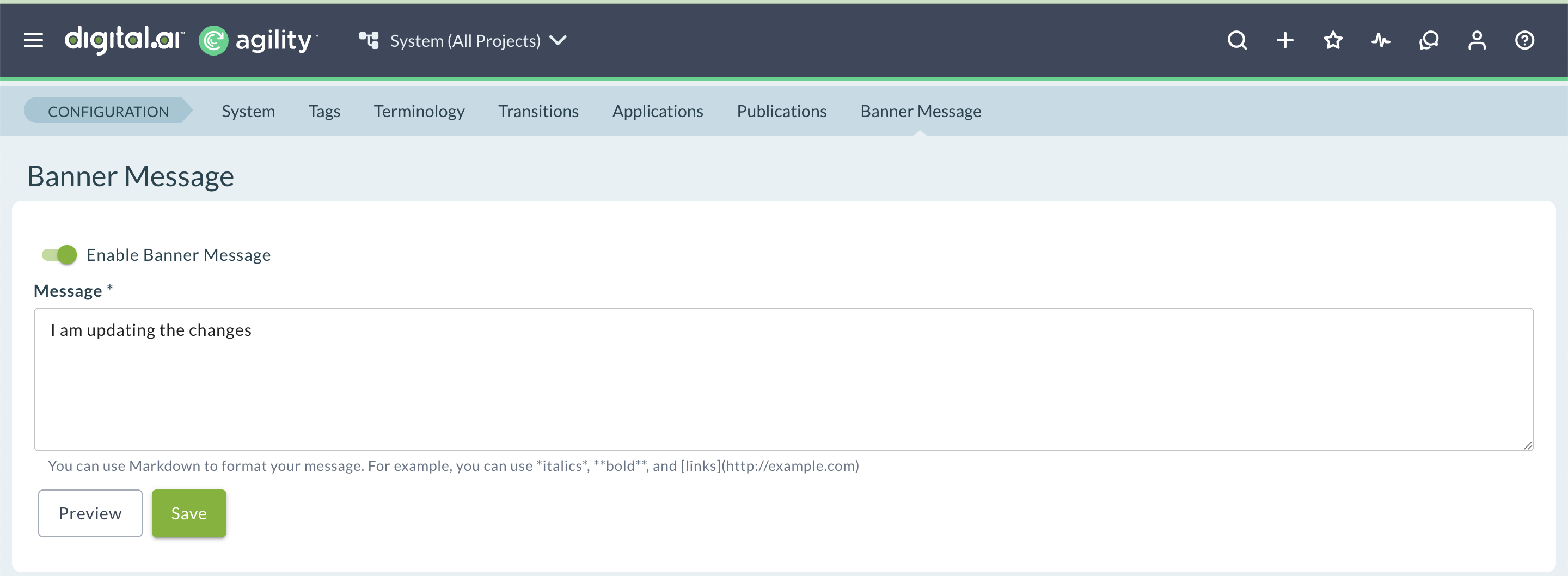
- Format banner messages using Markdown, including bold and italic text, bulleted lists, and hyperlinks
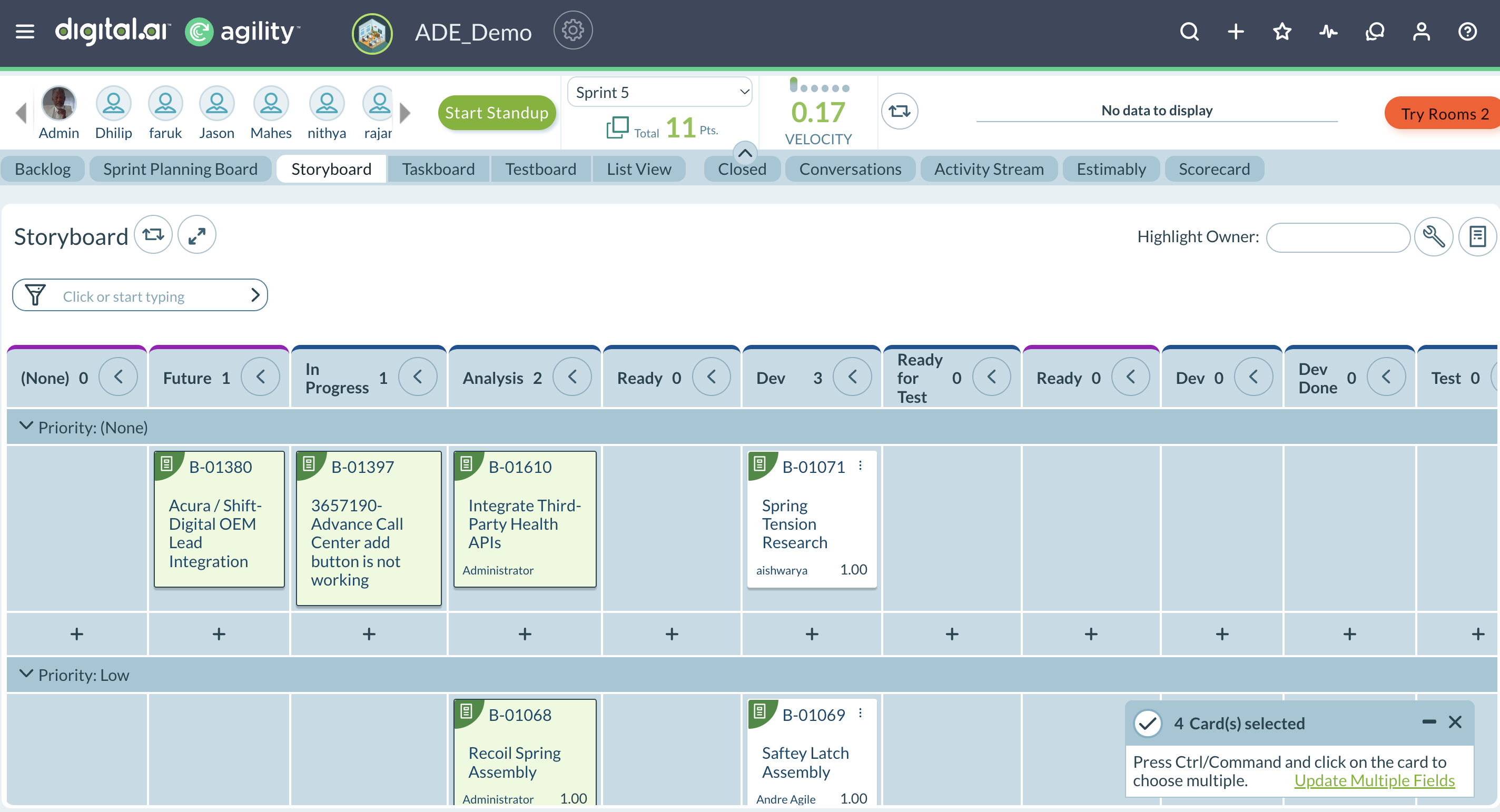
- Update multiple fields on selected cards from board views, including custom fields
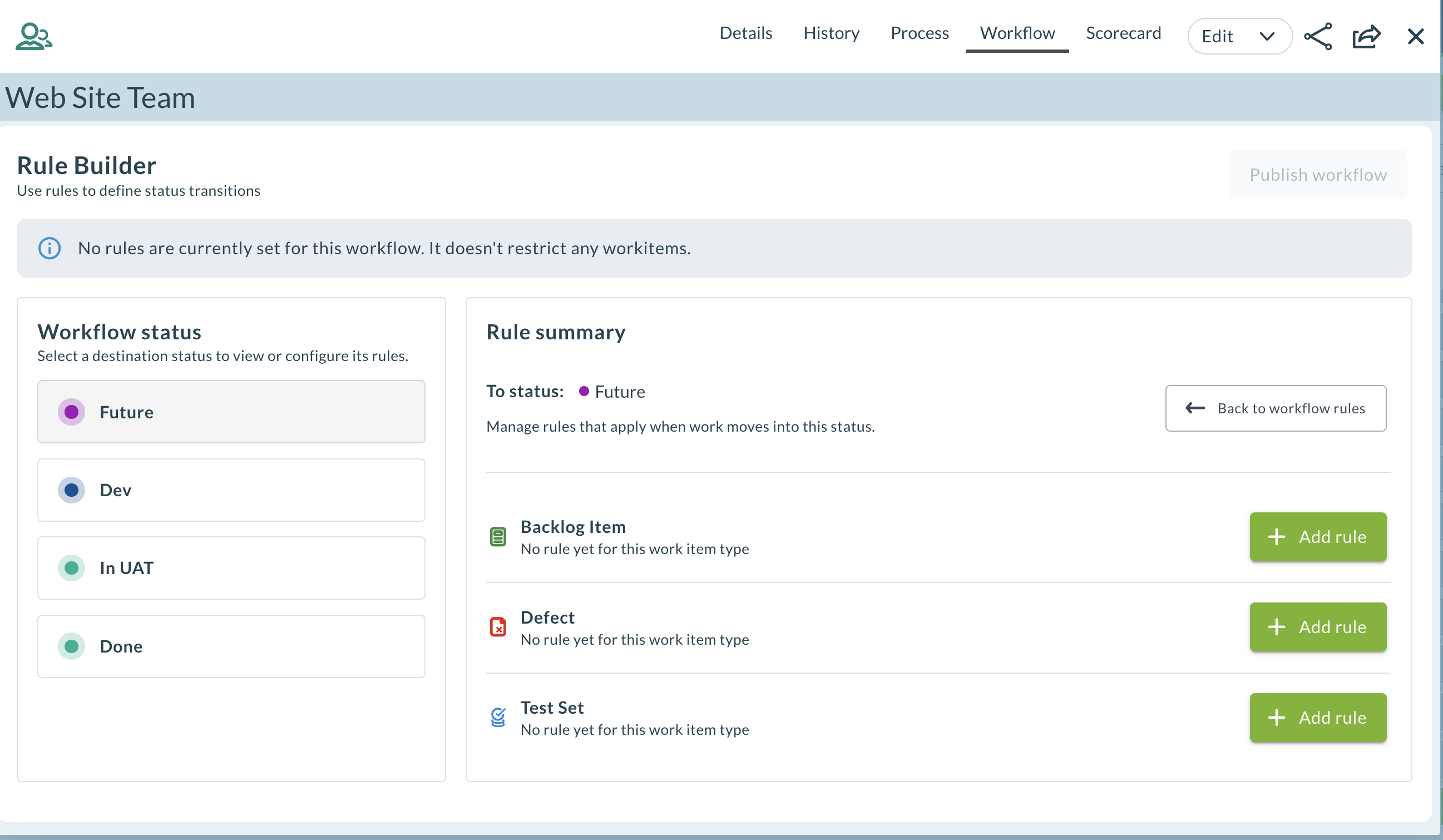
- Configure workflow transition rules for a team from the Workflow tab, by work item type and project role
Format Banner Messages with Markdown
Banner messages now support Markdown formatting, so you can highlight important information and link to relevant pages without leaving Agility. This uses the same Markdown syntax already supported in Rooms 2 conversations.
Key capabilities:
- Format banner message text with bold and italic styling
- Add a bulleted list to a banner message
- Insert hyperlinks directly in a banner message
For complete instructions, see Configure Banner Messages.
Update Multiple Fields from Board Cards
Apply the same update to several work items at once from card-based boards, instead of editing each card individually. Select multiple cards and update fields such as State, Priority, Iteration, Release, Team, and Owner in a single action. You can also update custom fields.
Where You Can Use It:
- Team Room: Iteration Storyboard and Kanban Storyboard
- Planning Room: Portfolio Kanban
- Iteration: Storyboard
- Portfolio: Portfolio Kanban
The custom fields shown depend on the type of item. For Backlog items, the custom fields added under Backlog appear. For Epics, the custom fields added under Epic appear.
For complete instructions, see Update Multiple Fields.
Configure Workflow Transition Rules for a Team
Control status changes for work items by configuring workflow transitions directly from the Workflow tab on the Team Details page. For each status, define which statuses a work item is allowed to move from into that status (To Status → From Allowed Status), configured separately for each work item type: Story, Defect, and Test Set.
What You Can Do:
- Add, edit, or delete a rule for a status and work item type in the Rule Builder.
- Select one or more From statuses for each rule.
- Restrict a transition to one or more project roles, so only members in those roles can make that move (for example, only a Project Lead can move an item from In Testing to Done). Members with the System Admin role can always make any transition.
- Publish your changes. Until you publish, changes stay in draft mode and are accessible only to the user who made them.
Once a workflow is published, Agility enforces its rules wherever a status can change, including the Storyboard (Agility Core and Rooms 2), the work item details view or drawer, bulk updates, and inline edits. An action that violates a transition rule is blocked, and an attempt by a member outside the allowed roles is also blocked, each with an error notification.
System Admins, Member Admins, Project Admins, and Project Leads can define the rules at the team process level.
For more information, see Workflow Transition Rules.
Agility Sync
- Agility Sync now supports Python 3.12
- View a change history for Agility Sync mappings
Python 3.12 Support for Agility Sync
Agility Sync now supports Python 3.12 on RHEL 9.x and Ubuntu 22.04 environments, in addition to the existing Python 3.9 support, so you can run Agility Sync on either version.
For complete requirements, see Agility Sync Server Requirements.
View Change History for Agility Sync Mappings
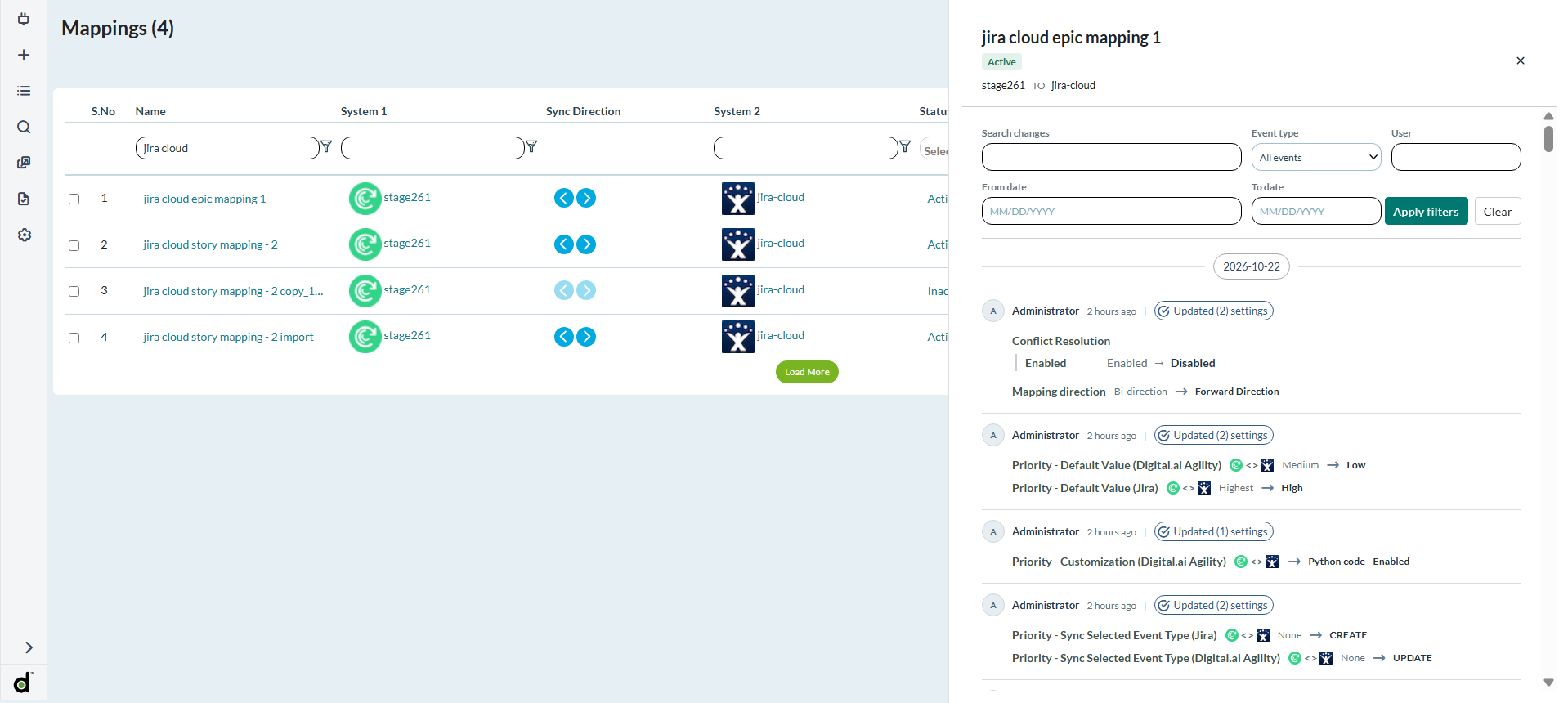
Agility Sync now logs a change history for each sync mapping, so you can see who changed a mapping's configuration and when.
Key capabilities:
- Open the change history from the options menu (⋮) next to a mapping, under Audit history
- View configuration changes on the Changes tab, separate from the existing Sync logs tab
- See changes grouped by date, with the user, timestamp, and the old and new value for each changed setting
- Filter the change history by event type, user, and date range
For complete instructions, see The Mappings List Page.
Documentation Changes
The Agility Release Notes section includes the following change for version 26.3.
Availability Tags on Release Notes
Each enhancement in the release notes now includes an availability tag that shows its supported deployments and editions at a glance, so you can tell whether a feature applies to your environment without reading the full description. Deployment tags cover Hosted (SaaS), Self-Hosted, and Air-Gapped; edition tags cover Essentials, Pro, and Premium. An enhancement available everywhere shows the default "All deployments" and "All editions" tags.
New Point Release Notes Structure
Point release notes now appear directly in the navigation sidebar, nested under their corresponding major release, so you can find the latest point release without leaving the sidebar. Open a major release, such as Digital.ai Agility version 26.2 Release Notes, to find all of its point releases grouped underneath it.
Rooms 2 Updates
Rooms 2 is updated weekly. To know more about the enhancements and fixes of Rooms 2, see Rooms 2 Weekly Updates.
Upgrade Schedule
| How to Upgrade | Agility Enterprise | Agility Ultimate |
|---|---|---|
| On-demand (auto-upgrade) | ||
| If your system is not in the auto-upgrade program, contact support to be added to the program or to schedule your upgrade. | Oct 24 (Trial) | Oct 31 (On demand) |
| On site | ||
| Contact Us if you need a 2026 annual license for your on-site system. | Contact Us | Contact Us |